Configure Teams Integration in Barista
note
All steps below are performed in Barista Admin at {tenant}.espressive.com/admin.
- Login to
{tenant}.espressive.com/admin - Click Integration Hub in the left navigation.
- Locate the Microsoft Teams card and click Configure.
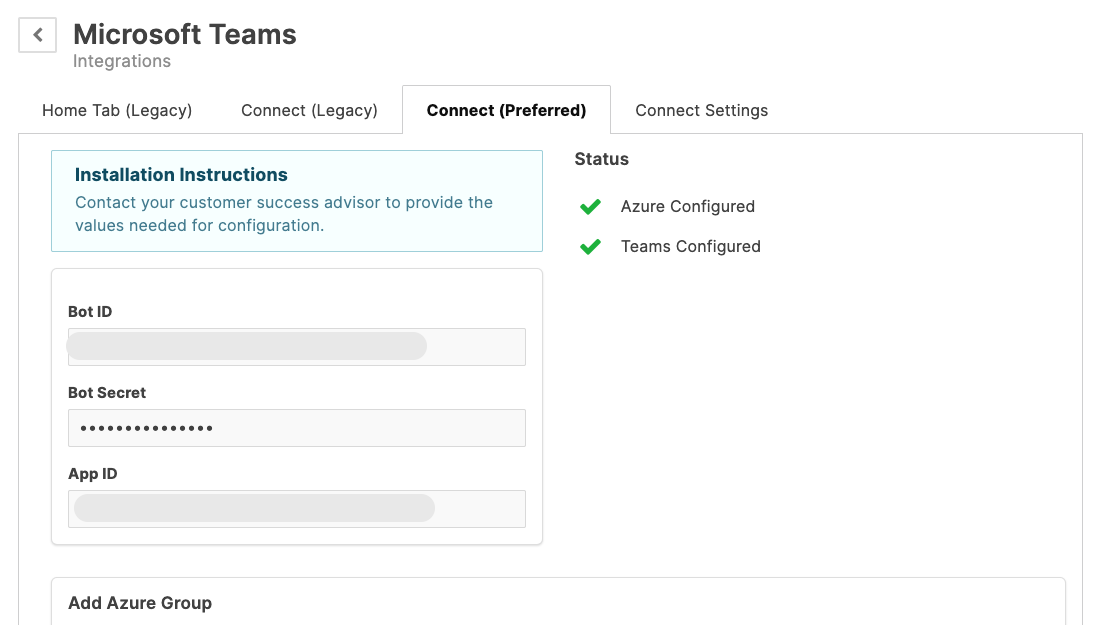
- Select the Connect (Preferred) tab.
- Enter the credentials provided by the customer service team:
- Bot ID
- Bot Secret
- App ID
- Click Save.
Verify Configuration Status
Check the Status panel on the right side of the page and confirm the following:
- Azure Configured shows a checkmark
- Teams Configured shows a checkmark
caution
Both status indicators must show a checkmark before proceeding. If Azure Configured shows an X, the Teams integration will not function, even if the bot credentials are saved correctly.
The warning message "MS Azure App Registration not configured" indicates this state. Return to Azure Configuration before continuing.