Ingest KB from SharePoint
Overview
Permissions for SharePoint can be managed through Microsoft Graph. The configuration of your integration will vary depending on the permission settings required. Barista can ingest knowledge and allow access to the content of a knowledge base or knowledge article based on Microsoft Graph permissions.
If you have a single site to use as a knowledge base, this option is recommended. If you have multiple sites and knowledge bases, Barista runs an algorithm to verify access to documents, folders, and sites before displaying content to the user.
Please discuss your options with a Resolve Professional to ensure you have the correct configuration. For more information on permissions when creating an app in Microsoft Azure, see Configuring Azure in Barista.
Pre-Requisites
- A Resolve Professional is required to set up this integration for the first time. Please ensure this integration is completed during a call that also involves an Azure admin from your organization, and that the prerequisites are discussed in advance.
- An Espressive admin account.
- Access to an Espressive tenant. You will need access to the Barista Control Center for the setup.
- A Microsoft SharePoint integration configured in your local tenant.
- An app registered within the Azure Portal.
Barista App in the Azure Portal
Your Azure admin will need to provide the following information from the Azure app:
Client ID
Client Secret ID
Tenant ID
The integration with SharePoint uses authentication on behalf of the user. The permissions required for the integration are listed below:
| Permission | Type | Description | Justification |
|---|---|---|---|
| Delegated | View users' email addresses | Required for all app registrations | |
| offline_access | Delegated | Maintain access to data you have given it access to | Required for all app registrations |
| profile | Delegated | View users' basic profile | Required for all app registrations |
| OpenId | Delegated | Required for all app registrations | |
| User.Read | Delegated | Sign in and read the user profile | Required for all app registrations |
| Sites.Read.All | Delegated | Allows the application to read documents and list items in all site collections on behalf of the signed-in user | Required for SharePoint |
| Sites.Read.All | Application | Allows the app to read documents and list items in all site collections without a signed-in user | Required for SharePoint |
| Files.Read.All | Delegated | Allows the app to read all files the signed-in user can access | Required for SharePoint |
| Files.Read.All | Application | Allows the app to read all files in all site collections without a signed-in user | Required for SharePoint |
Integrate Barista with SharePoint through Barista Admin
These steps must be performed by a Barista admin.
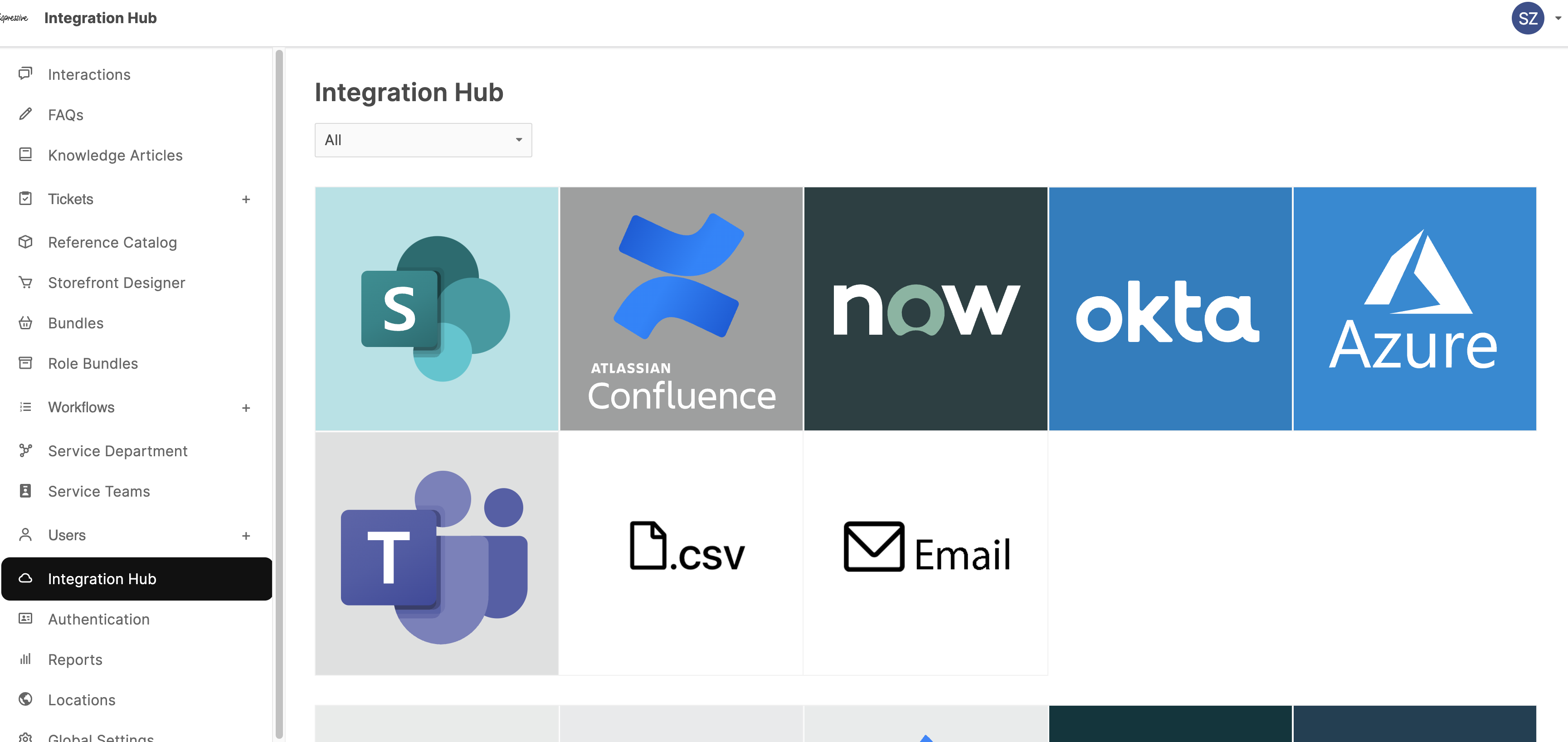
- Go to Barista Admin > Integration Hub.
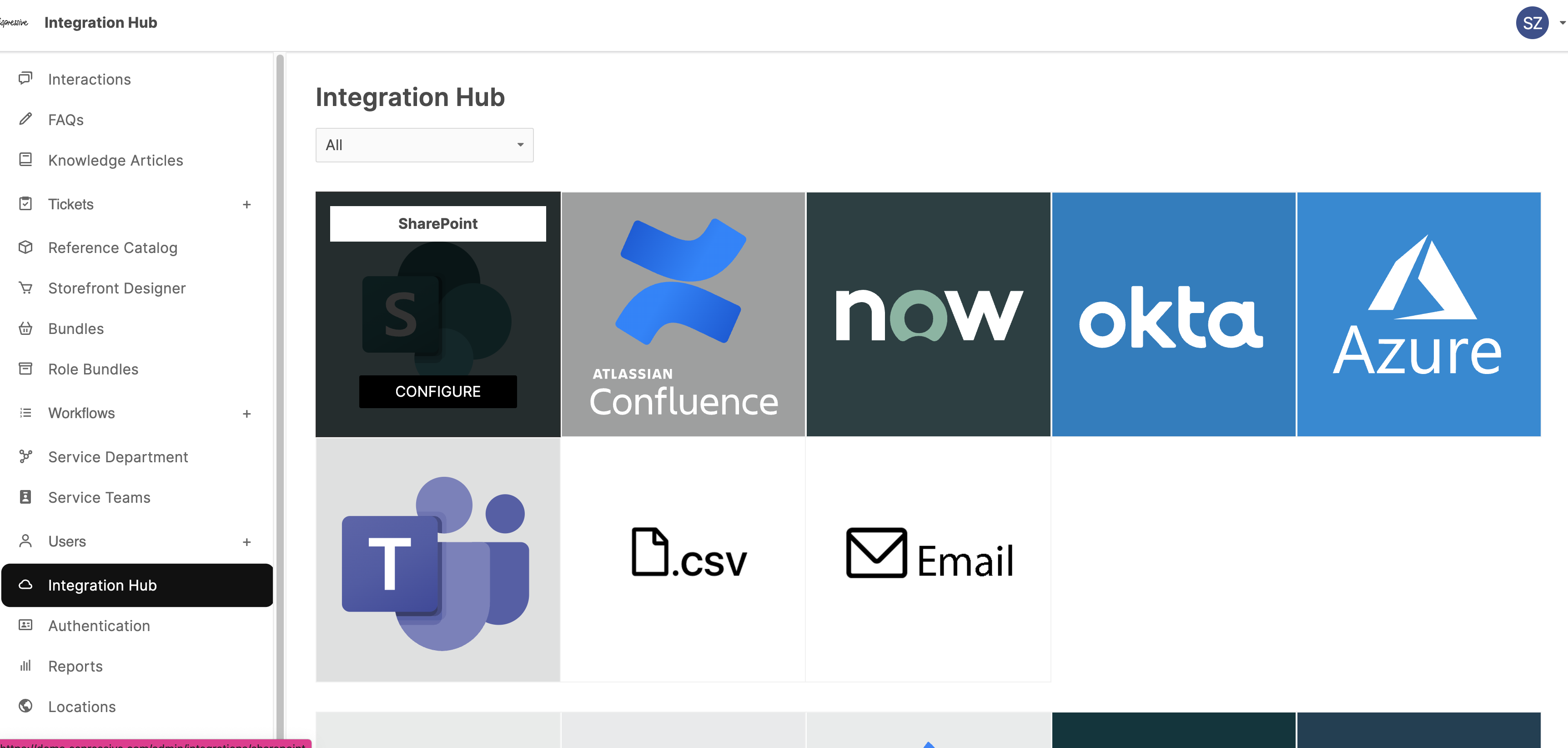
- Hover over SharePoint to display the Configure button, then click it.
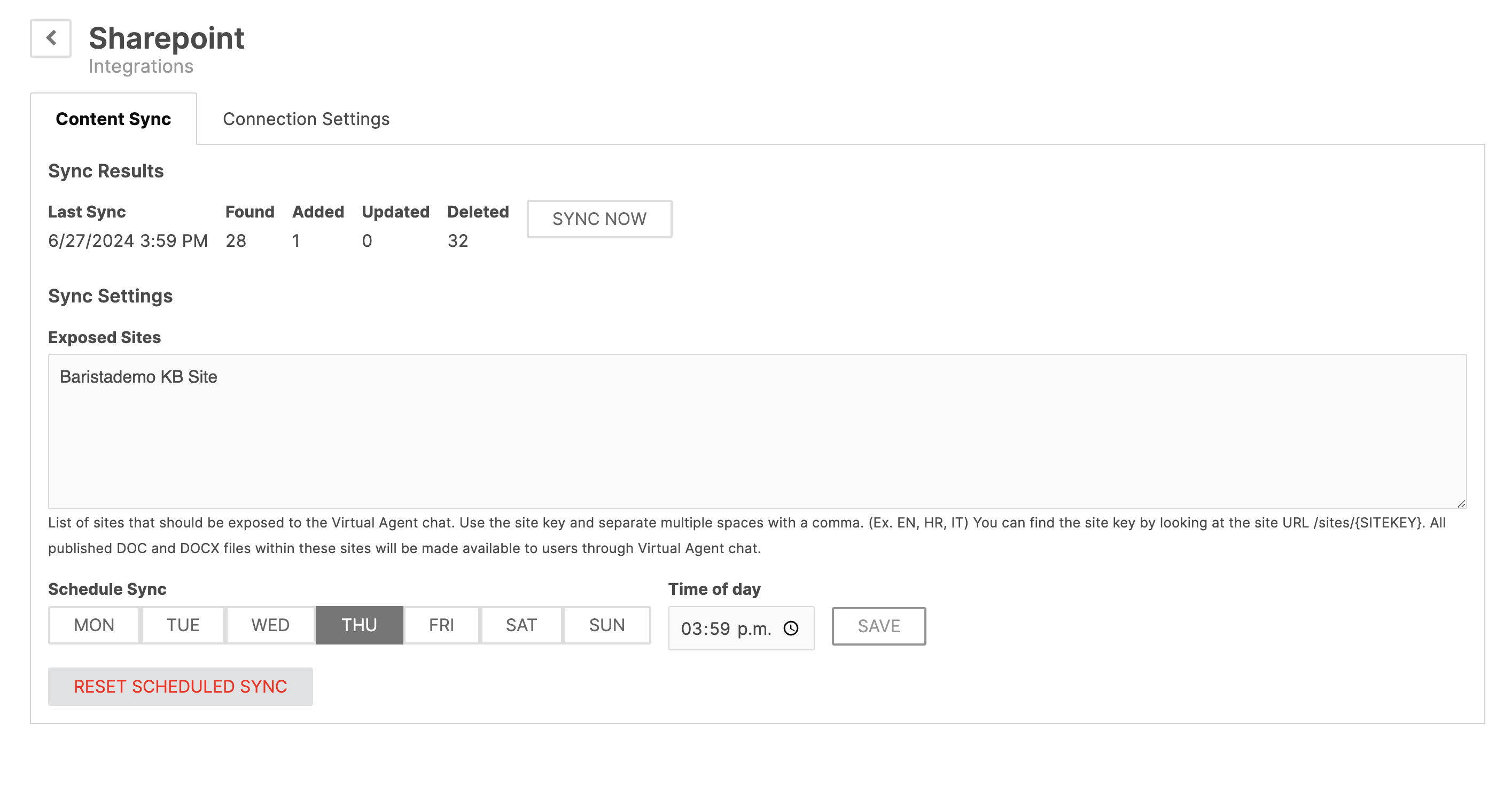
- The Content Sync tab is displayed.
If this is your first time integrating SharePoint with Barista, skip this tab for now and go directly to the Connection Settings tab.
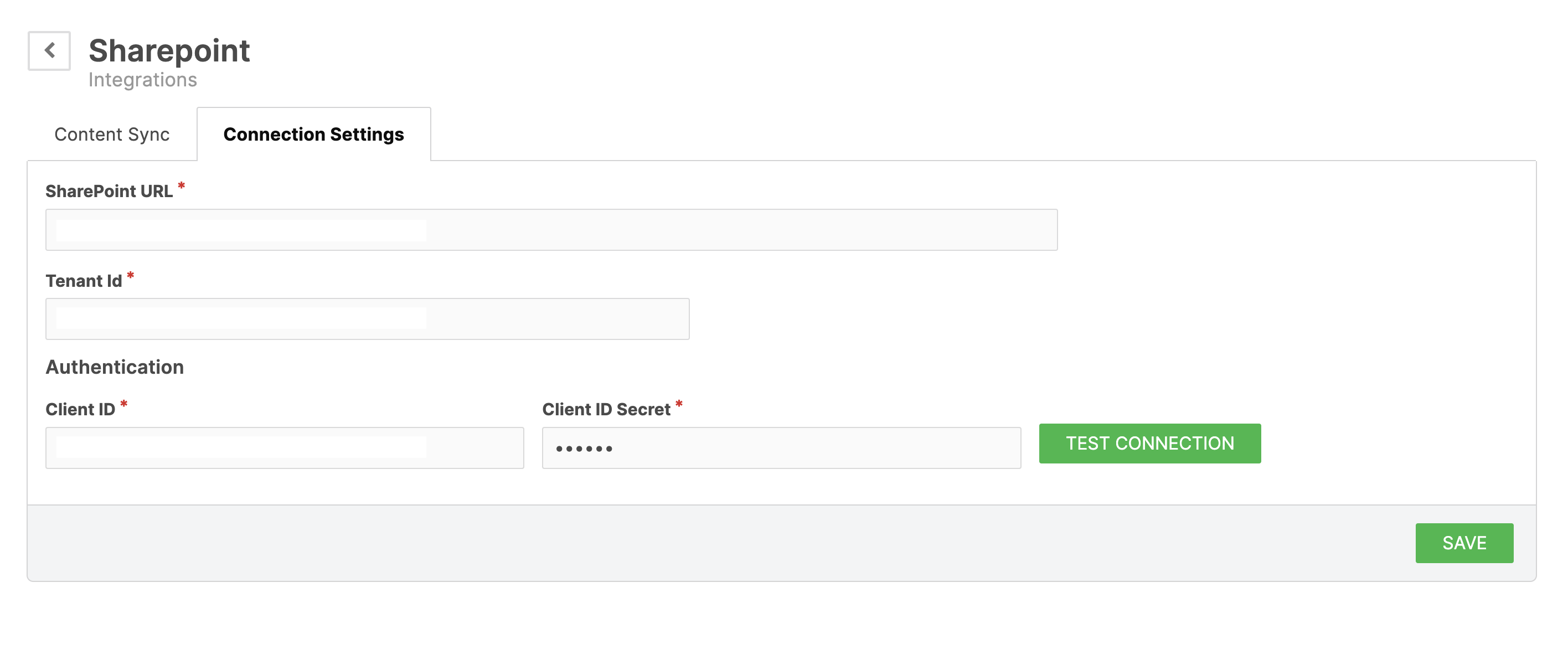
- Enter the information described in the prerequisites section.
-
Click Save.
-
If no errors appear, click Test Connection. A notification confirms that the connection was successful.
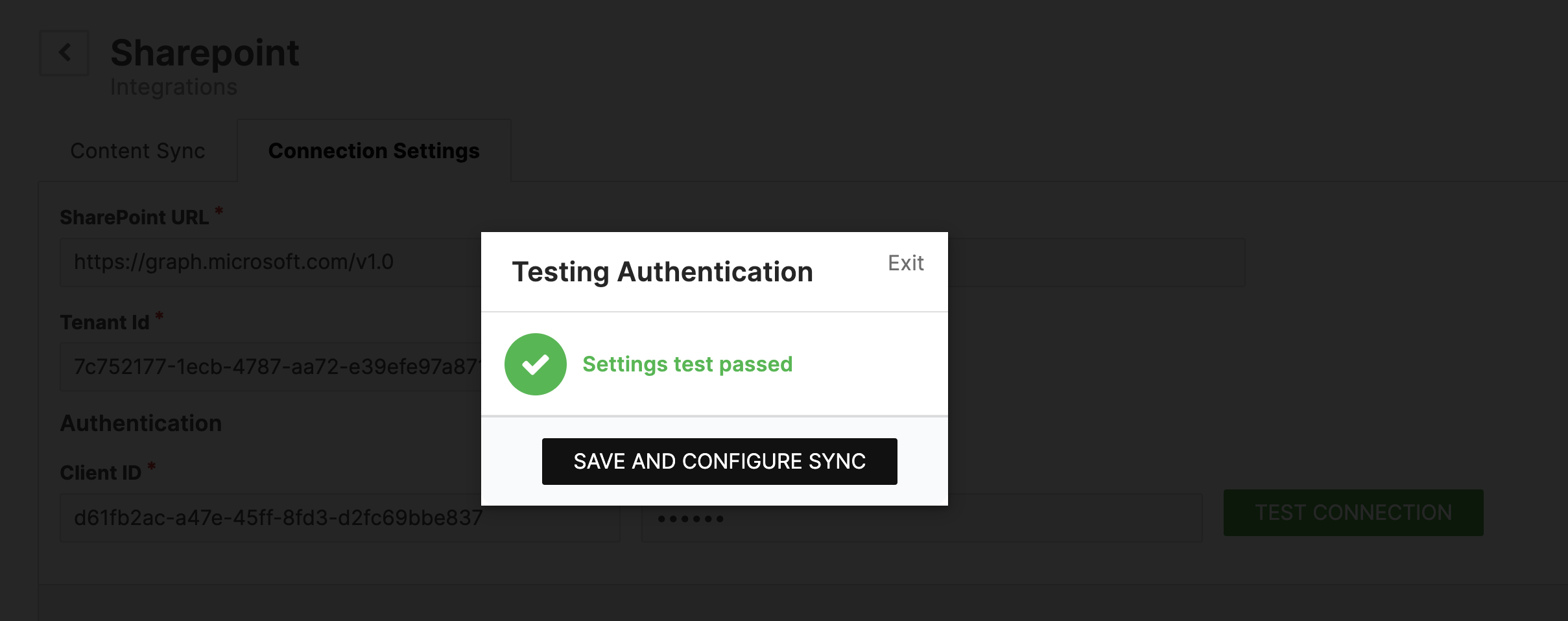
Add Credentials and Configurations from Barista Control Center
If the integration cannot be completed through the Integration Hub, a Barista admin can complete it through the Barista Control Center. This is useful when you need to verify access to knowledge before Barista can provide it to users.
Define Access Type
- Navigate to Barista Control Center > System Configurations.
- Search for
barista.nlp.kb_service.sharepoint.user_access_check_type. - Select SharePoint or Graph, depending on your needs.
- SharePoint: Barista verifies access to documents, sites, folders, and users.
- Graph: Access is defined by user only.
- Navigate to Integrations > SharePoint.
- Click Edit.
- In the Configurations field, enter the Microsoft Graph API URL.
- Select the sites to include in the pull, or include all sites if the access type selected in Step 3 is SharePoint so Barista can verify access to each document, folder, and site for each user.
If you have only one document type (for example, Q&A), the configuration may look like this:
{
  "url": "https://graph.microsoft.com/v1.0",
  "sites": "KnowledgeBase"
}
For a pull with n categories (n > 1), add all keys as a comma-separated string:
{
  "url": "https://graph.microsoft.com/v1.0",
  "sites": "KnowledgeBase1, KnowledgeBase2, ..., KnowledgeBase(n)"
}
Pull Knowledge Articles from SharePoint
- In Barista Control Center, go to Barista > Knowledge Base Support > Manage Content.
- Select SharePoint as the source.
- Under Action, select Sync All.
Verify Ingested Articles
- Navigate to Barista > Knowledge Base Support > Check Content.
- Verify that the knowledge bases have been ingested. Select an individual knowledge base to verify its contents.
Ingestion Options
Ingest All or Select Sites
Barista can ingest all SharePoint sites or only selected sites.
This is configured in Barista Control Center > Integrations > SharePoint by editing the Configuration field.
To ingest only specific sites, add the site name to the sites field:
{
  "url": "https://graph.microsoft.com/v1.0",
  "sites": "Baristademo KB Site"
}
To ingest all sites, replace:
"sites": "Baristademo KB Site"
with:
"ingest_all_sites": TRUE
Ingest Specific Formats
Barista can be configured to ingest only specific document types. In the Microsoft SharePoint integration, add the following configuration with a comma-separated list of document types:
{
  "allowed_types": "pdf, docx, doc, aspx, txt"
}
If this configuration is not added or is malformed, Barista ingests all supported document types.
Edit Size Limit for Files
To configure the maximum file size, use:
barista.nlp.knowledge_base_support.ingestion.kb_max_size (default: 500000)
This configuration is not seeded. The recommended value is 5 MB (5242880).
Errors
If you receive the following error:
Failed to add/update article (article_id: 1c7480fd-5f9a-4eaa-8d62-3449f985376c)! Reason: Article size is 1632202, which is larger than allowed: 500000
Increase the size limit configuration.
Edit Size Limit for PDF Files
PDF ingestion can also be limited by the number of pages.
Navigate to Barista Control Center > System > Configurations and update the Page limit.
| Name | Default value |
|---|---|
| barista.nlp.kb_support.ingest.pdf_page_limit | None |
If this configuration does not exist, contact an Espressive Professional.
Enable User Access Check
You must synchronize users from Azure before enabling user access checks.
The User Access Check API is seeded into tenants with existing SharePoint integrations.
To validate access, open the integration and locate the User Access Check API.
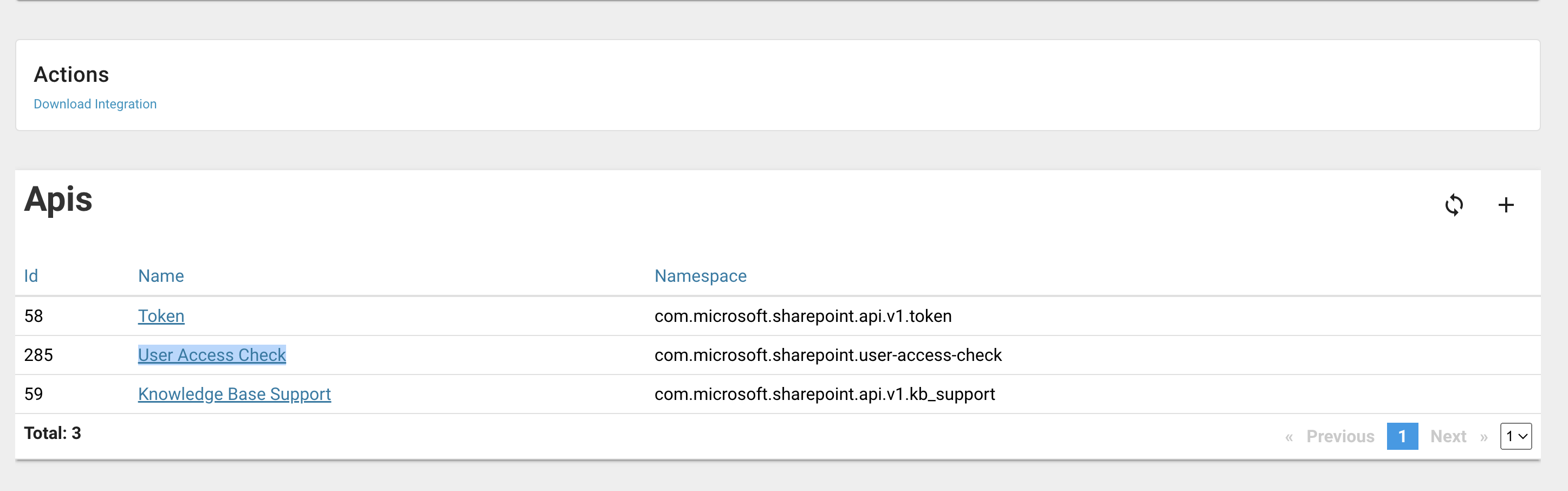
Inside the API, verify that a method named User Access Check exists.
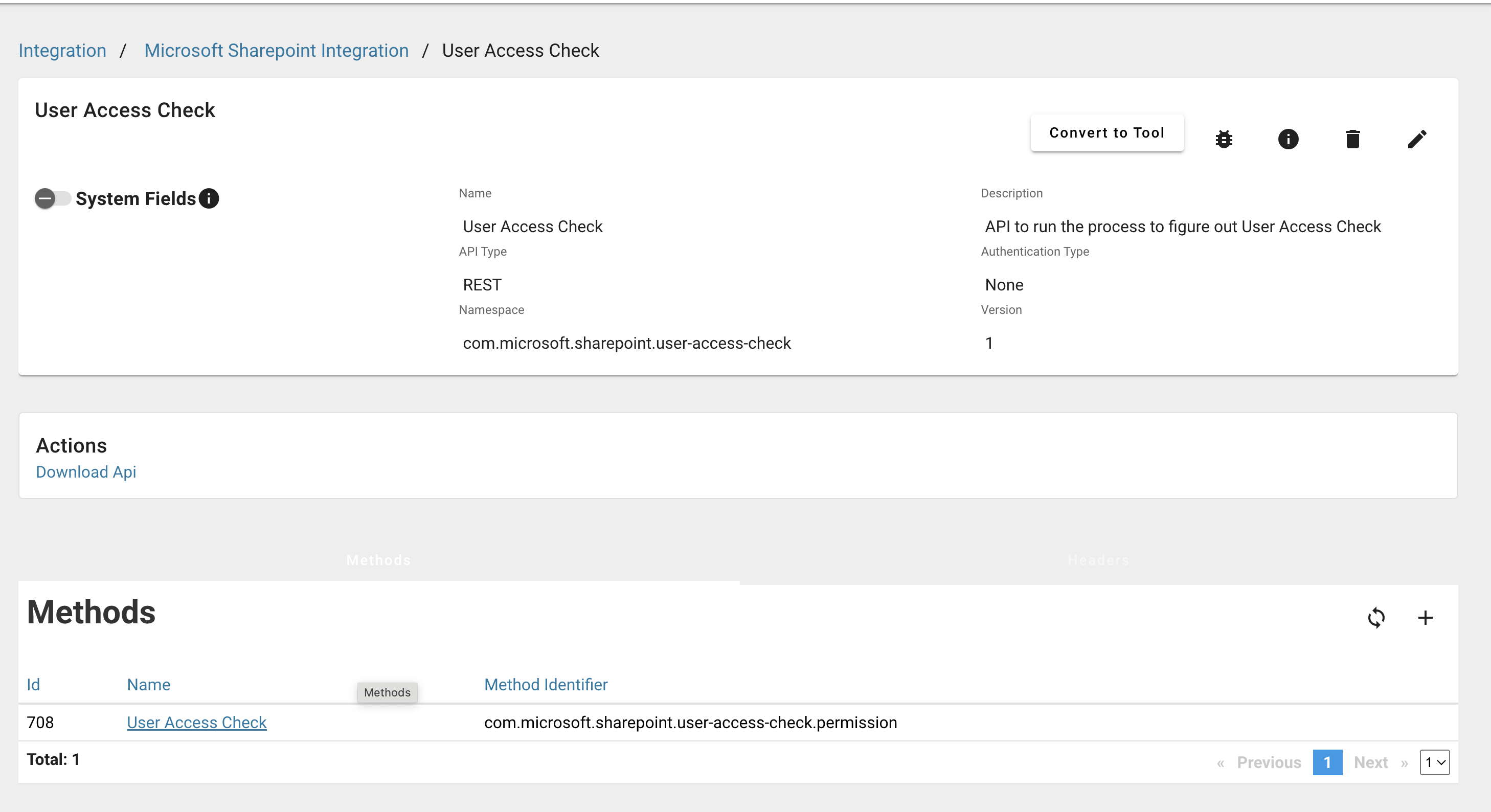
Enable user access checks for this source by setting the following configuration:
barista.nlp.knowledge_base_support.user_access_check.enable