Configure Incident Management
Prerequisites
- ServiceNow users synced in Barista .
- Users have permission to create/manage incidents in ServiceNow.
Verify Users Synced
- Go to Users > List.
- Confirm ServiceNow users appear.
- If not, repeat User Sync:
Integration Hub > ServiceNow > User Sync > enteractive=true> Run > confirm.
Enable User Impersonation
- Go to
{tenant}.espressive.com/status. - Navigate to Display Settings.
- Scroll down to Barista chat.
- Enable the toggle Barista For Agents To Use Barista On Behalf Of Employee.
- Navigate to Users > List from the side panel menu.
- Search for the username:
esp.integration. - Click View.
- Click Edit.
- Click **Administrative Permissions and in the Role field add
Agent. - Click Save.
note
Repeat the process for any usernames that will need to impersonate users.
Test Incident Creation
- Navigate to https://[tenant].espressive.com/v2/chat or navigate to https://[tenant].espressive.com.
- Click on Get Help.
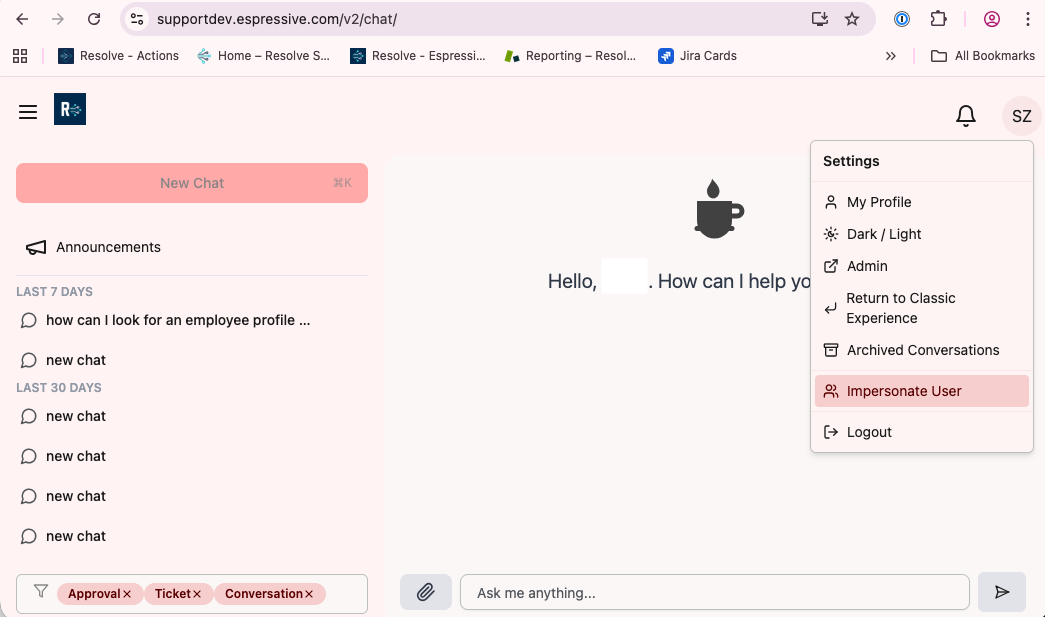
- For Chat v2, click on your initials, and select Impersonate User. For classic Barista, select Options > Impersonate User,
- Ask a question in chat and request ticket creation.
- Verify:
- Incident is created
- Incident bar appears at top with details
- Link to ServiceNow ticket is visible
Test Incident Management Features
- Start a new chat.
- Ask to "see all open tickets" or "ticket statuses".
- Verify that tickets are displayed.
- Click a ticket card and verify:
- Ticket details are correct
- Options to cancel, escalate, resolve, comment and attach file are available.
- Add a comment through the chat.
- Go to ServiceNow and verify the comment is visible
tip
Customer-specific field mappings and additional incident options can be configured by contacting your customer service representative to verify Doppio > Integrations > ServiceNow.