Custom Activities
Use Custom activities in any workflow just like out-of-the-box Resolve activities. Custom activities are visually distinct, making it easy to recognize them within a workflow.
To use custom activities, you must install and configure the Remote Executor. For details on enabling the Remote Executor, see Setting up Hybrid Components.
In the Workflow Designer
Within the workflow designer a custom activity is marked as such in the following places.
In the Workflow Toolbox
Custom activity categories will all be denoted by an orange category color and a wrench icon.
Note that if a custom activity category does not have any enabled activities in it, the category itself will not show in the Workflow Designer.
On the Workflow Canvas
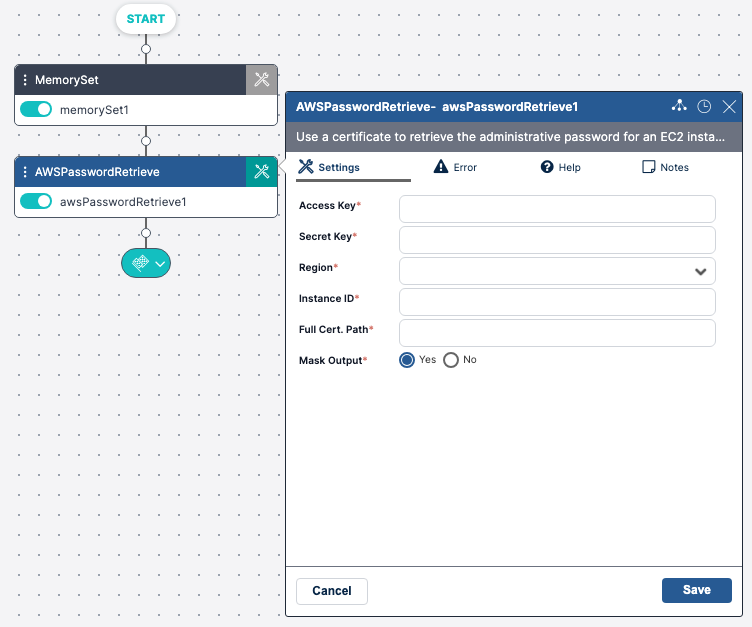
A custom activity added to the workflow designer canvas will show the activity with a distinct blue color across the top of the activity block and activity settings.
In the Execution Log
When running a workflow in the workflow designer, any custom activities included in that workflow will show a (custom) label next to their Activity Name in the Execution Log.
In the Audit Trail
When viewing the workflow Activity Log in the Audit Trail, the Activity Name will be followed by (custom) for all custom activities.
In the Workflow Export
When exporting a workflow, the XML will note any custom activities included in that workflow.